
Boon has already analyzed your company and generated an initial understanding of your business: your company profile, products, market segments, target audience, and competitors. Instead of starting from a blank page, you start from a working draft.
Before you rely on that draft, verify five areas — Company, Products, Market segments, Target audience, and Competitors. This guide shows you what to check in each one, what you can correct yourself, and what to flag to the Boon team. Any edits you make take effect immediately.
Before you start
Most customers receive a workspace that has already been built and populated. If you've received an invitation to your company's workspace, you're ready to begin.
Optional: if you ever need an additional workspace, you can create one yourself by entering a website URL — Boon builds it from there.
Start with OverviewThe Overview page is a point-in-time summary of what Boon currently understands about your company: who you are, what you offer, who you sell to, and how you compare to competitors.
Skim it once before anything else. Its job in this review is to help you spot information that looks inaccurate or incomplete. When something looks off, the matching section in the left menu is where you'll correct it.
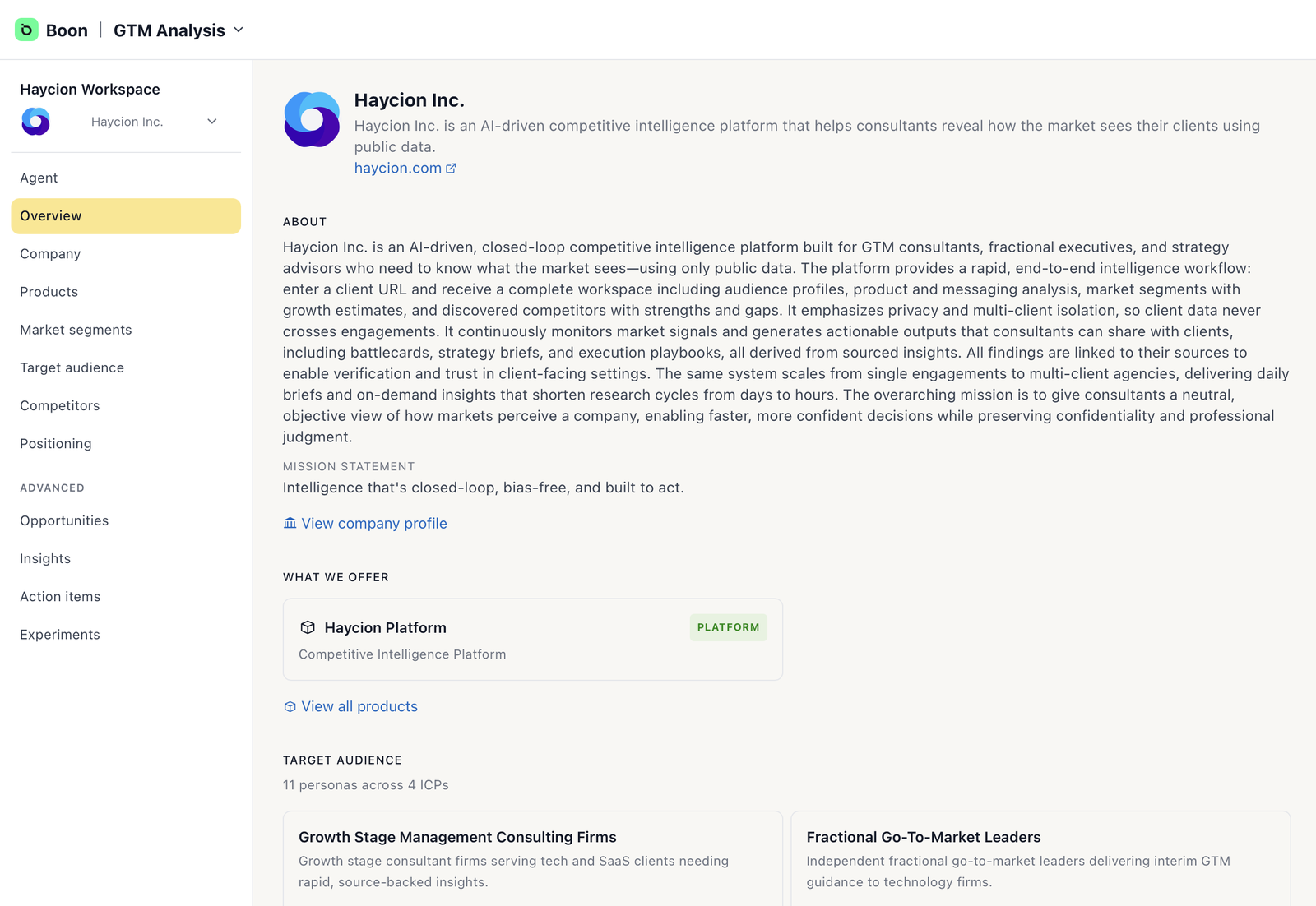
The Overview — Boon's current read on your company, at a glance.
Review your Company
Your company profile contains your description, mission statement, location, and case studies. Read it the way a new customer would: is this accurate, current, and complete?
If anything is wrong or outdated, open Edit Organization in the Actions panel and correct it directly.
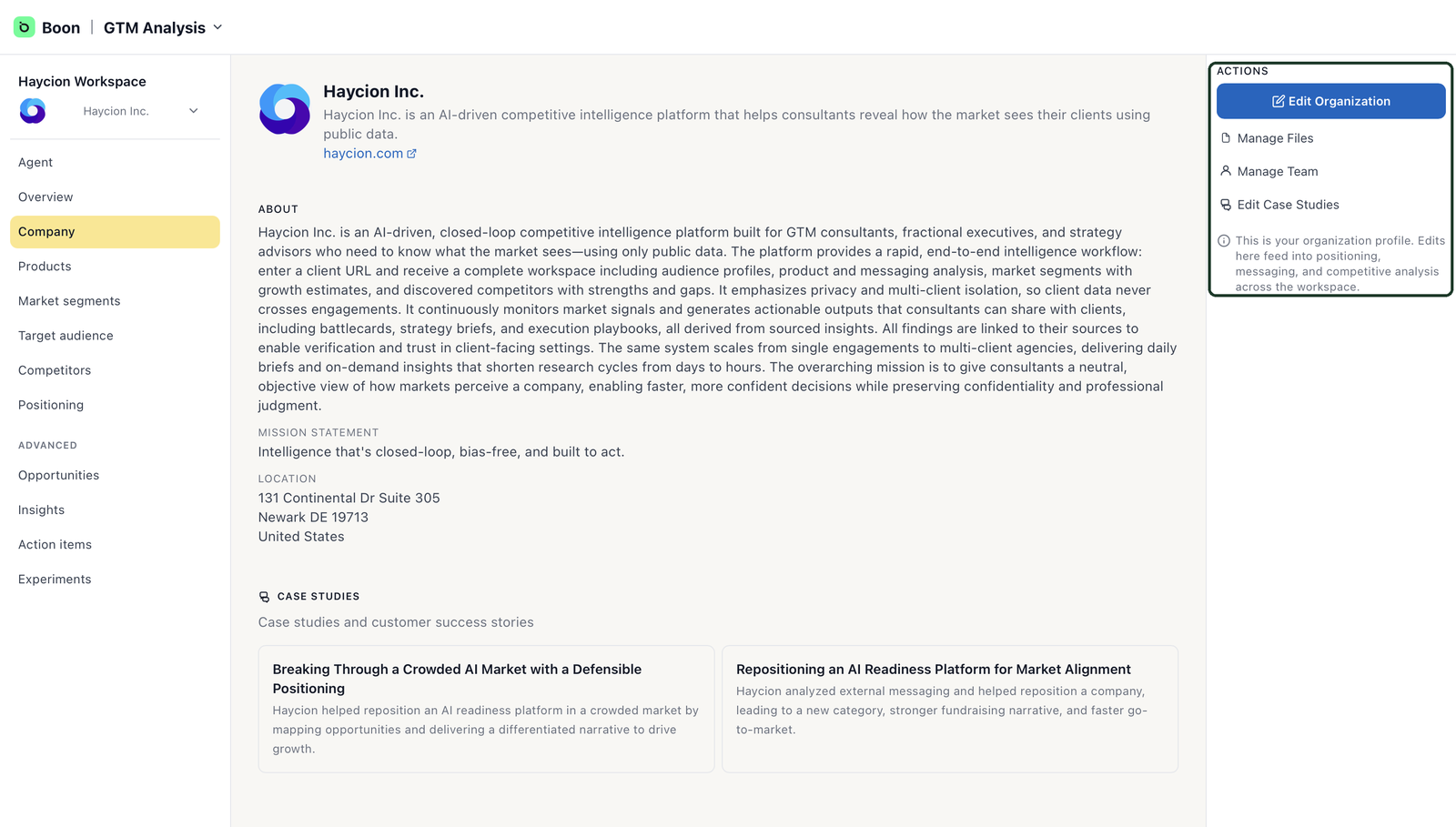
The Company page — corrections start from the Actions panel.
When to use Manage Files
A public website rarely tells the complete story. If there's important context Boon couldn't have found — approved case studies, product documents, presentations — upload them under Manage Files to improve the accuracy of your workspace.
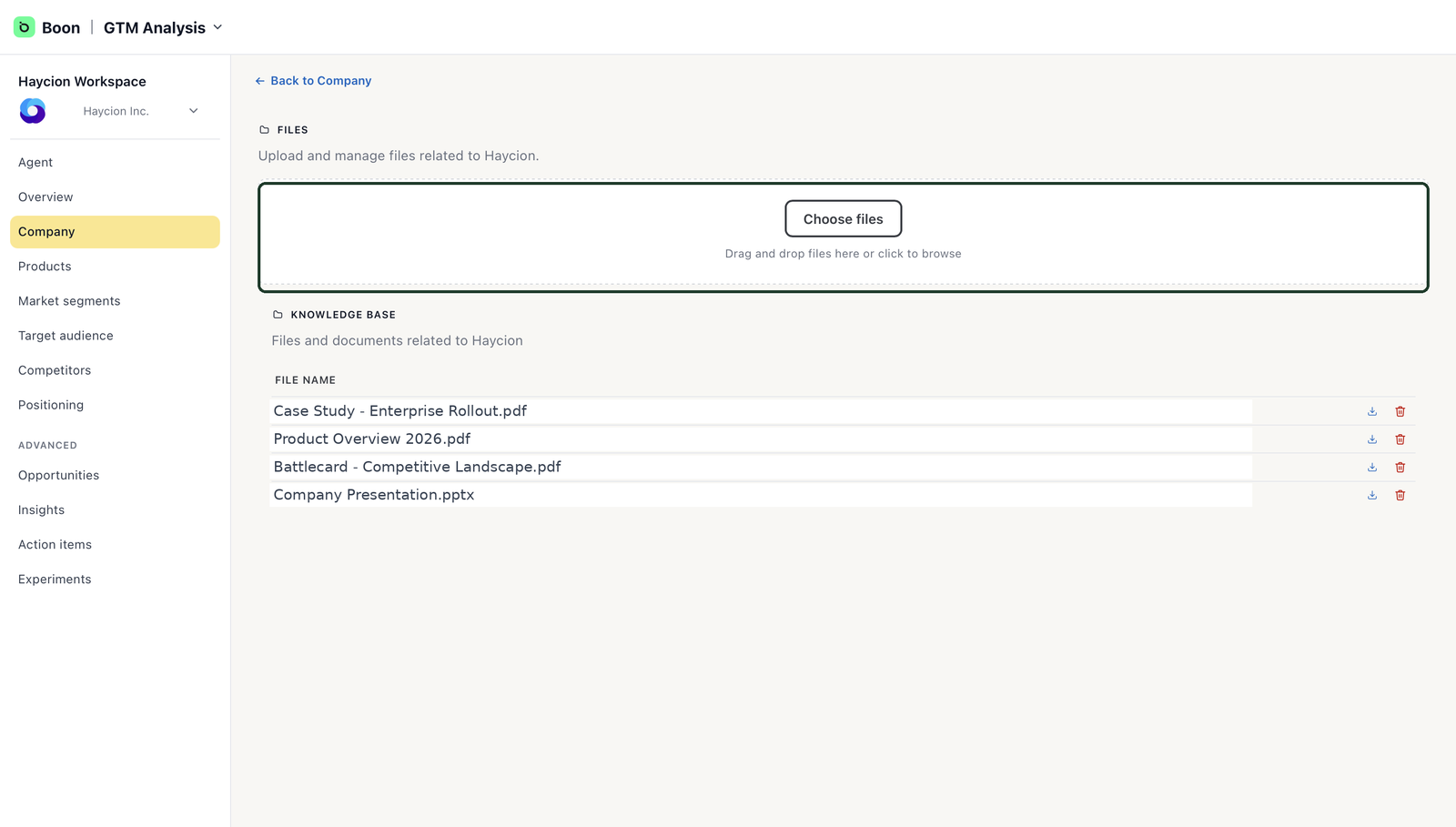
Manage Files — add what your website doesn't say.
Review your ProductsBoon identified your products and services from public information. Open each one and check that the description, features, and benefits match how your team would present it.
You can edit or remove an existing product, and add or edit features within it.
Good to know: adding a brand-new product isn't currently available in the workspace. If something you sell is missing from the list, contact the Boon team and they'll add it for you.
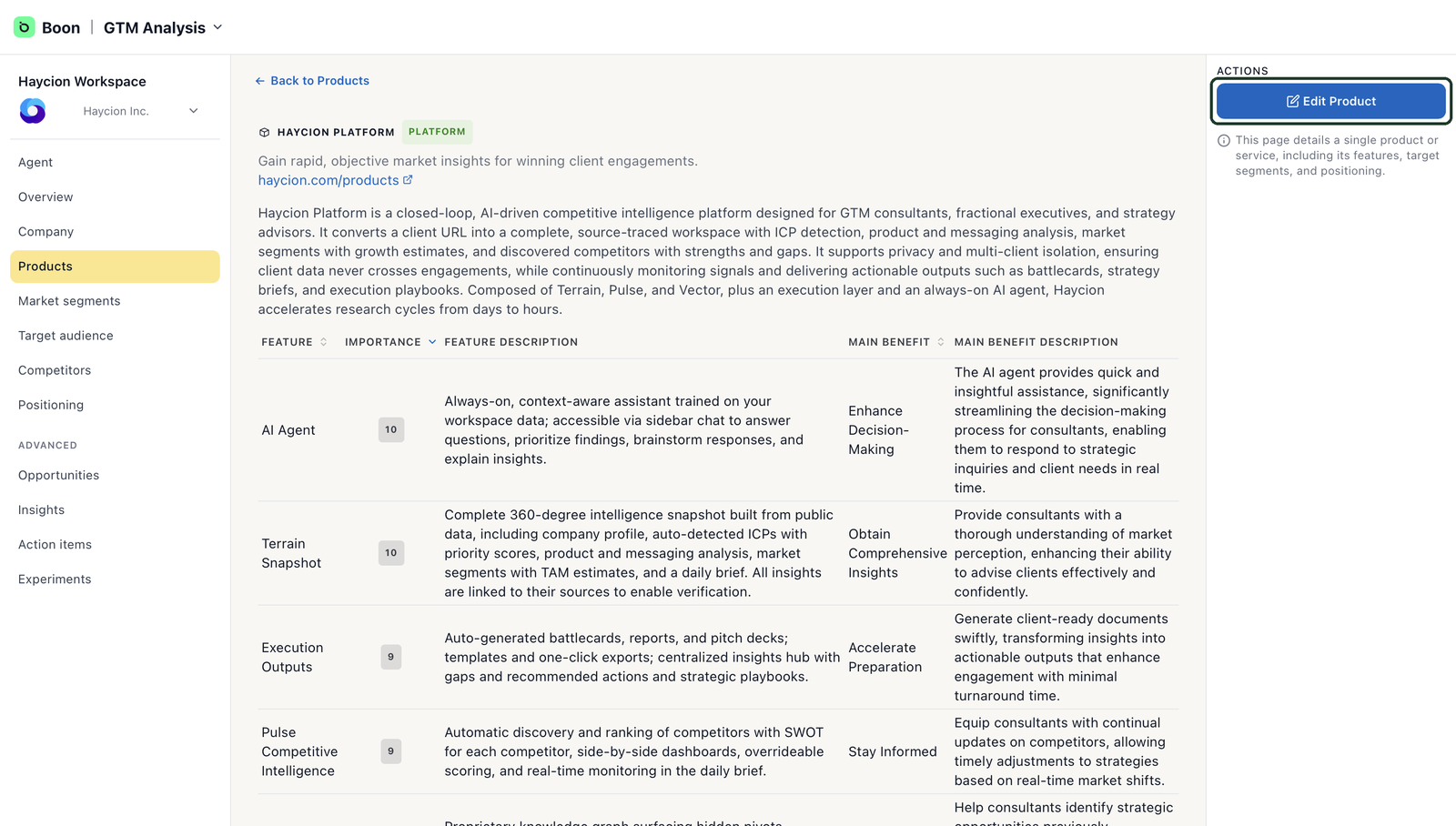
A product detail page — check description, features, and benefits.
Review your Market segmentsThis section shows the markets Boon believes you operate in, with estimated market size and growth for each. Every estimate includes references, so you can see where the numbers came from.
Focus on the list itself: confirm that each segment is a market your team actively targets. You don't need to validate every figure — the references are there when you want to check a source.
If a segment doesn't reflect your actual focus, flag it to the Boon team so it can be corrected.
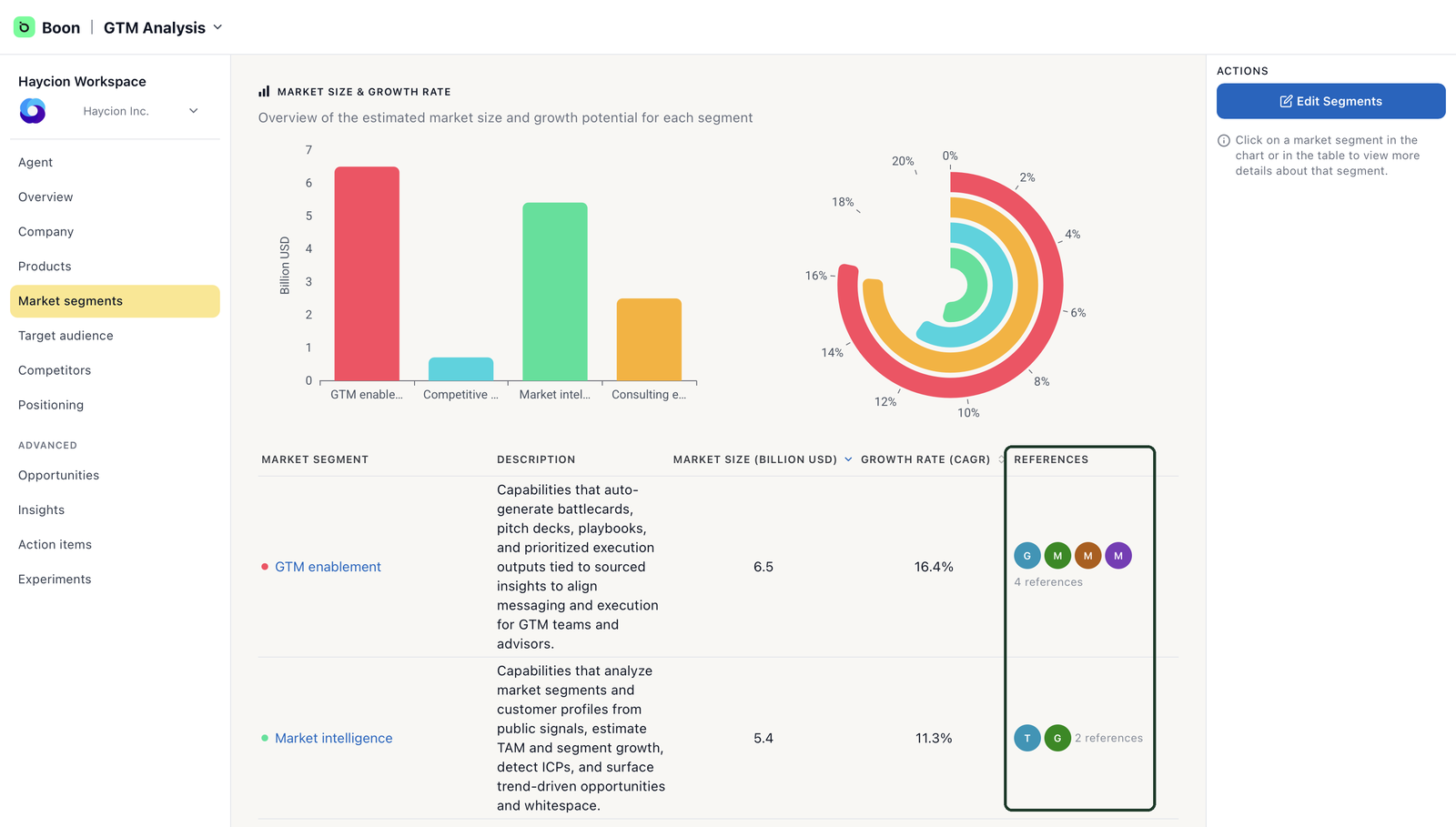
Market segments — sourced estimates, with references for every figure.
Review your Target audienceBoon organizes your audience into ICPs — the types of companies most likely to benefit from your product — and personas, the relevant people inside those companies, such as a VP of Sales. Each has a relevance score showing how closely it matches the available information about your company.
You can edit or remove existing ICPs and personas using Edit ICPs. Adding a new ICP isn't currently available — if an important customer type is missing, contact the Boon team.
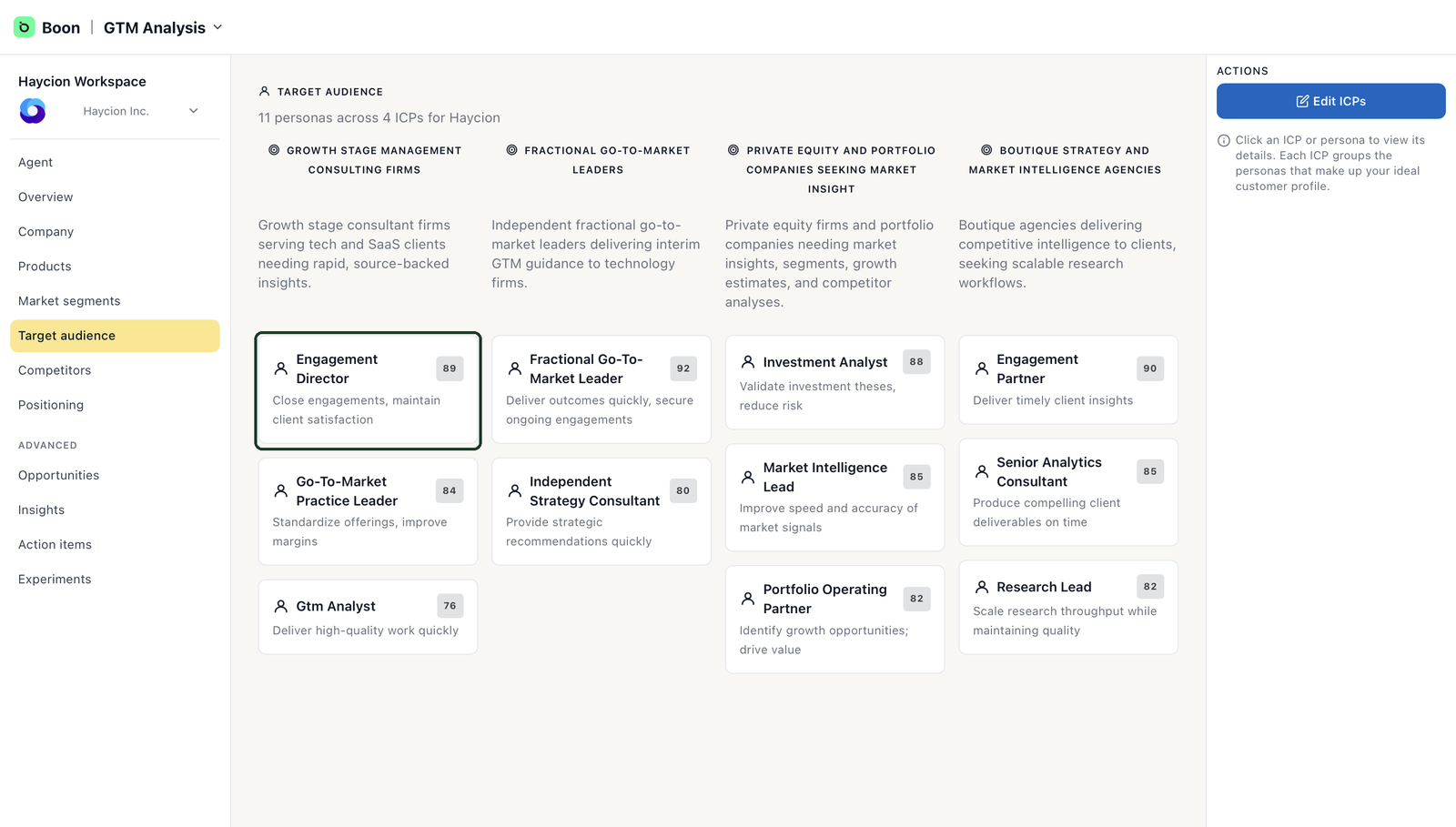
ICPs and personas — make sure they match your real buyers.
Review your CompetitorsBoon identified companies that compete with you and classified each as Direct, Indirect, or Potential Partner, with a score showing how closely it overlaps with your business.
Scan the list for anyone missing. If a competitor you track isn't there, use Add Competitor to add them yourself.
Review the classifications too — but note that changing a classification is still in development. If one looks incorrect, contact the Boon team and they'll correct it.
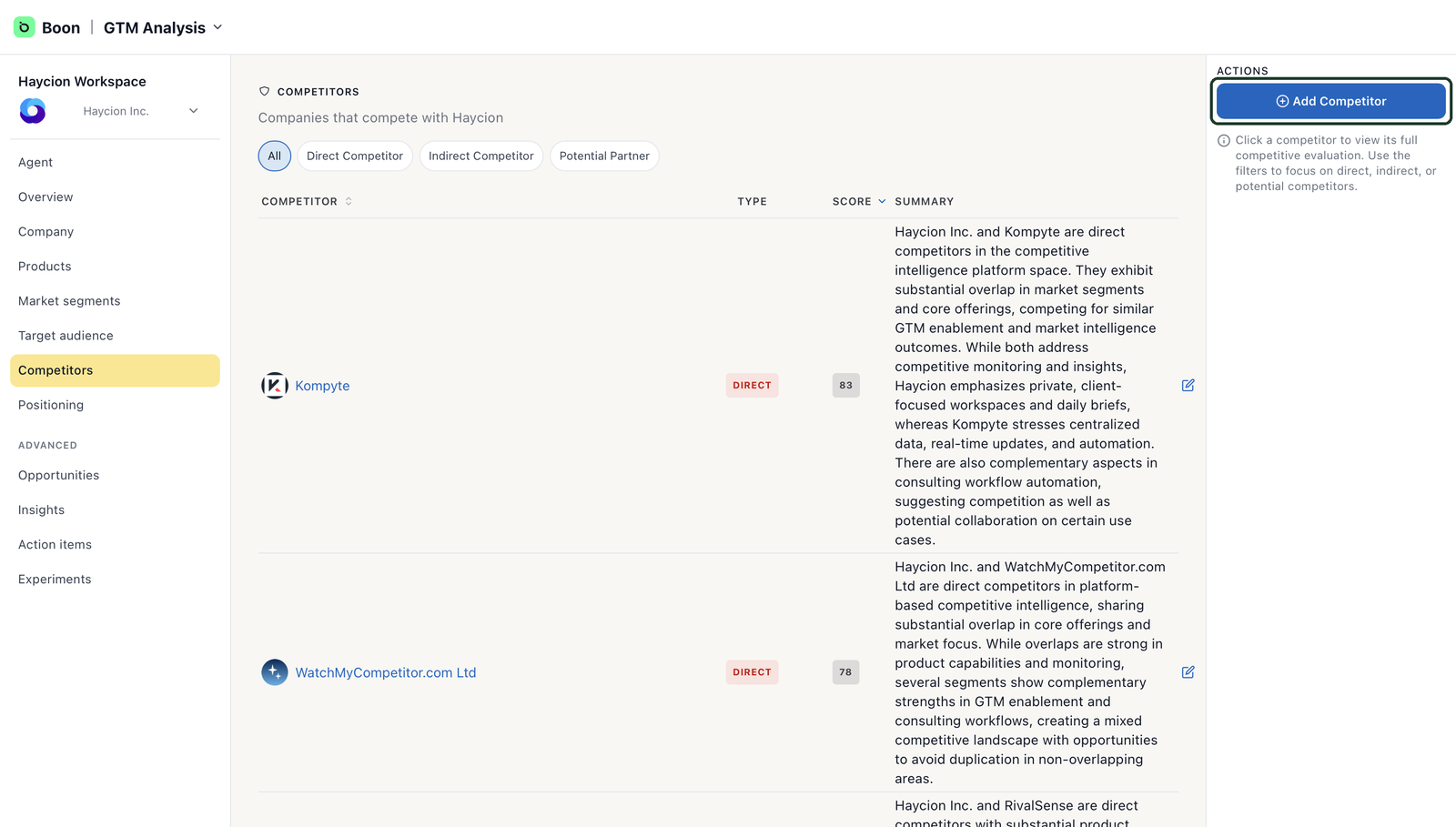
Competitors — filter by type, and add anyone missing.
You're ready when…- Your company profile is accurate and current
- Relevant documents your website doesn't cover are uploaded
- Each product's description and features are correct, and anything missing has been reported
- Your market segments reflect the markets you actively target
- Your ICPs and personas match your real buyers
- Missing competitors are added, and any questionable classification has been flagged
When the Overview reads like something your own team could have written, your initial review is complete.
Explore your PositioningOnce your five inputs are right, Positioning is the first place the corrected data pays off. It's read-only — nothing to edit here; just read it and see how Boon believes you stack up.
The strength matrix scores you against your competitors, category by category, across the capabilities that matter in your market. It's built from the competitor list you just reviewed — which is why the review comes first.
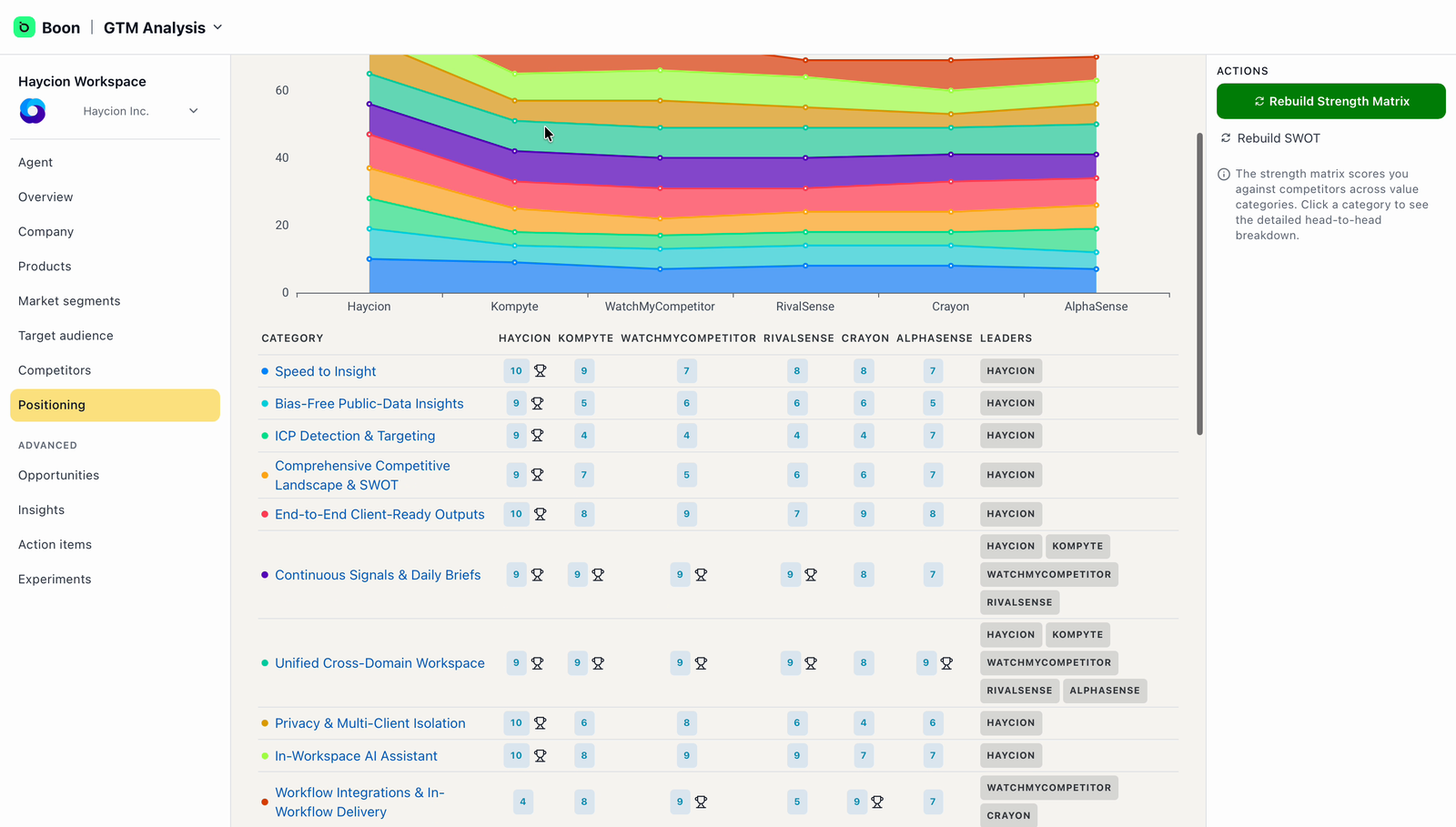
The strength matrix — how you score against competitors, category by category.
Below it, Boon generates a SWOT analysis — strengths, weaknesses, opportunities, and threats — written from everything in your workspace.
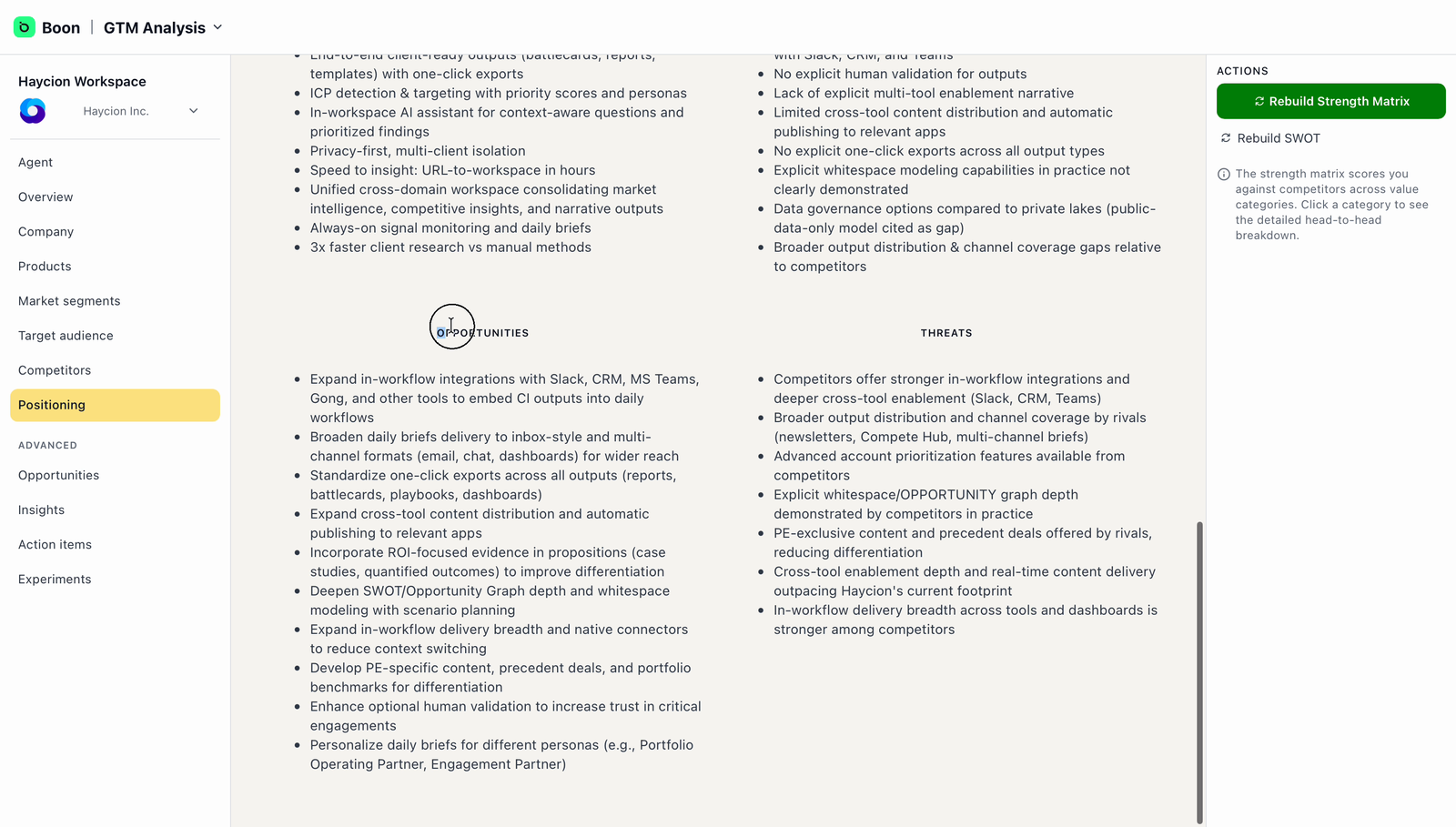
The generated SWOT — opportunities and threats, side by side.
Good to know: if you corrected inputs after Boon first built these, use Rebuild Strength Matrix and Rebuild SWOT in the Actions panel so they reflect your edits.
Browse your OpportunitiesThe remaining pages live under Advanced in the left menu. First is Opportunities — a knowledge graph that visualizes GTM opportunities and how each one connects to your strengths and your competitors' weaknesses. The nodes are the things you just verified: your company, market segments, ICPs, personas, strengths, and weaknesses.
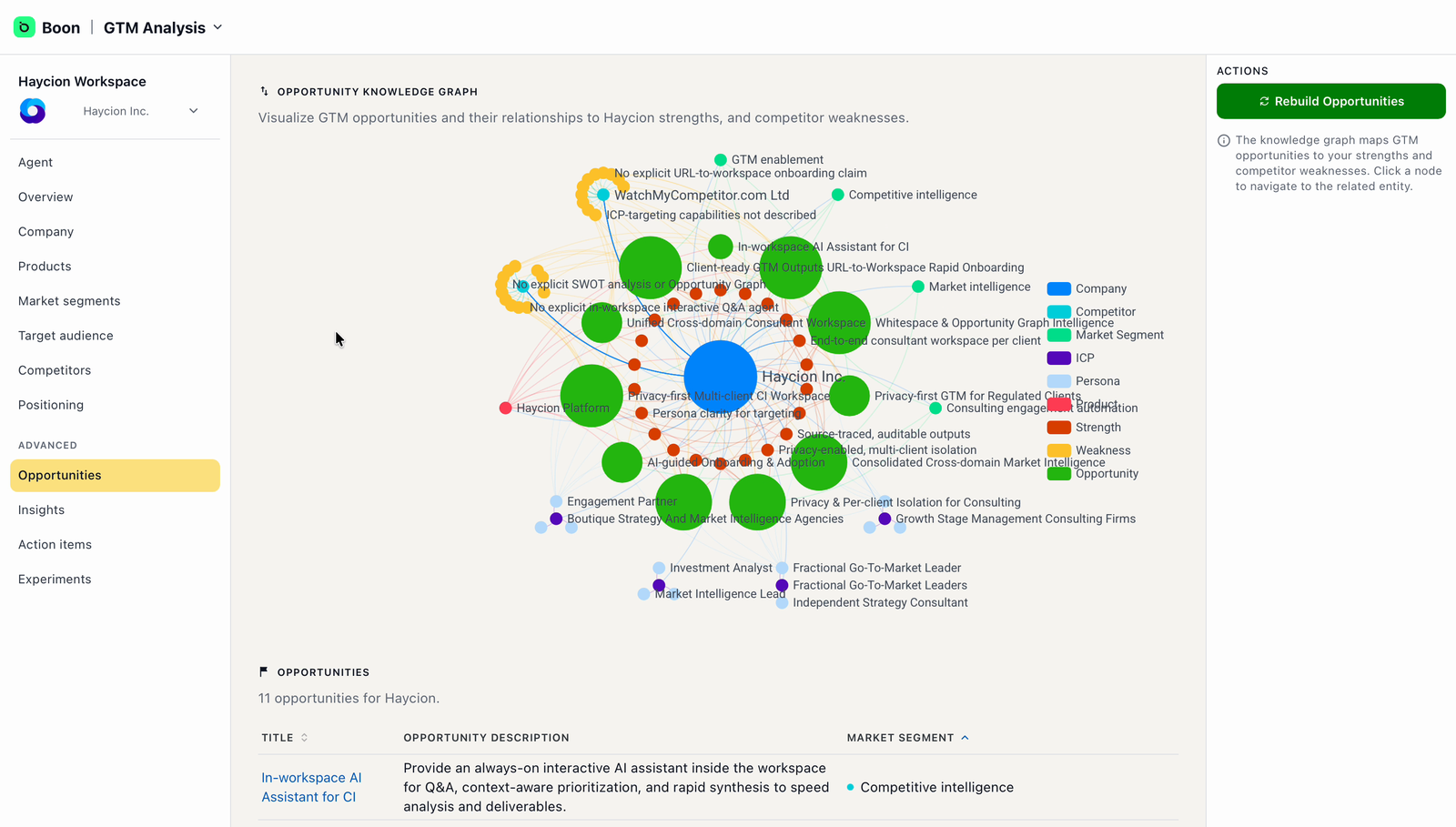
The opportunity graph — each opportunity, connected to what makes it credible.
Below the graph, every opportunity is listed with a description and the market segment it belongs to. There's nothing to do here at onboarding — explore it, and come back when you're planning campaigns.
Work through your InsightsInsights are specific, written observations Boon has generated about your company — filterable by category (Company, Products & Services, ICPs, Personas, Messaging) and searchable. Each one explains a gap or an opportunity in a few sentences, with the related part of your workspace linked.
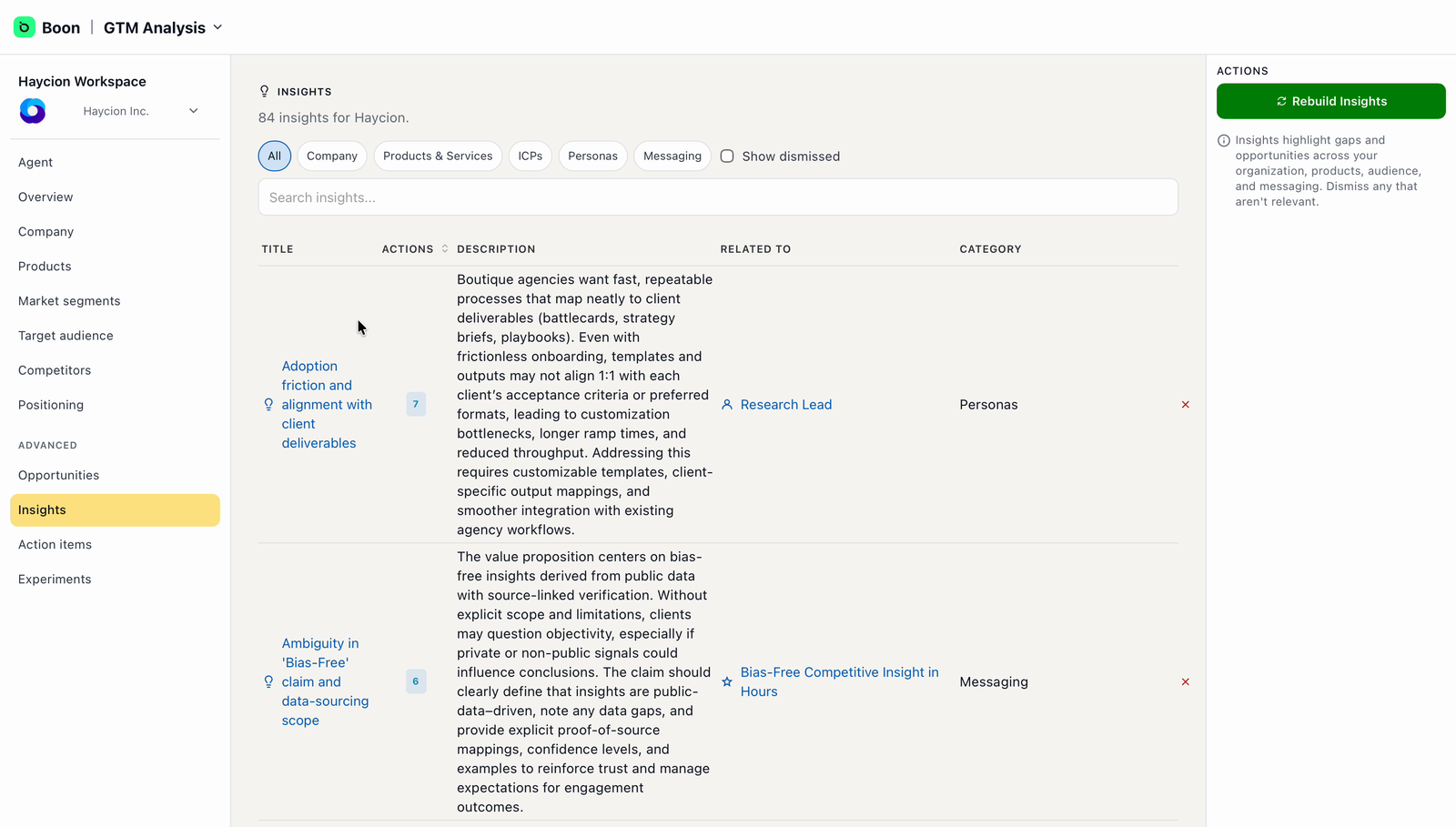
Insights — filter by category, and dismiss what doesn't fit.
You don't need to act on all of them. Two things are worth doing: dismiss insights that don't fit your business — it keeps the list useful — and open the ones that ring true.
Inside an insight, Boon generates concrete action items from it. Each can be edited or removed, and Generate More Action Items produces further ones from the same insight.
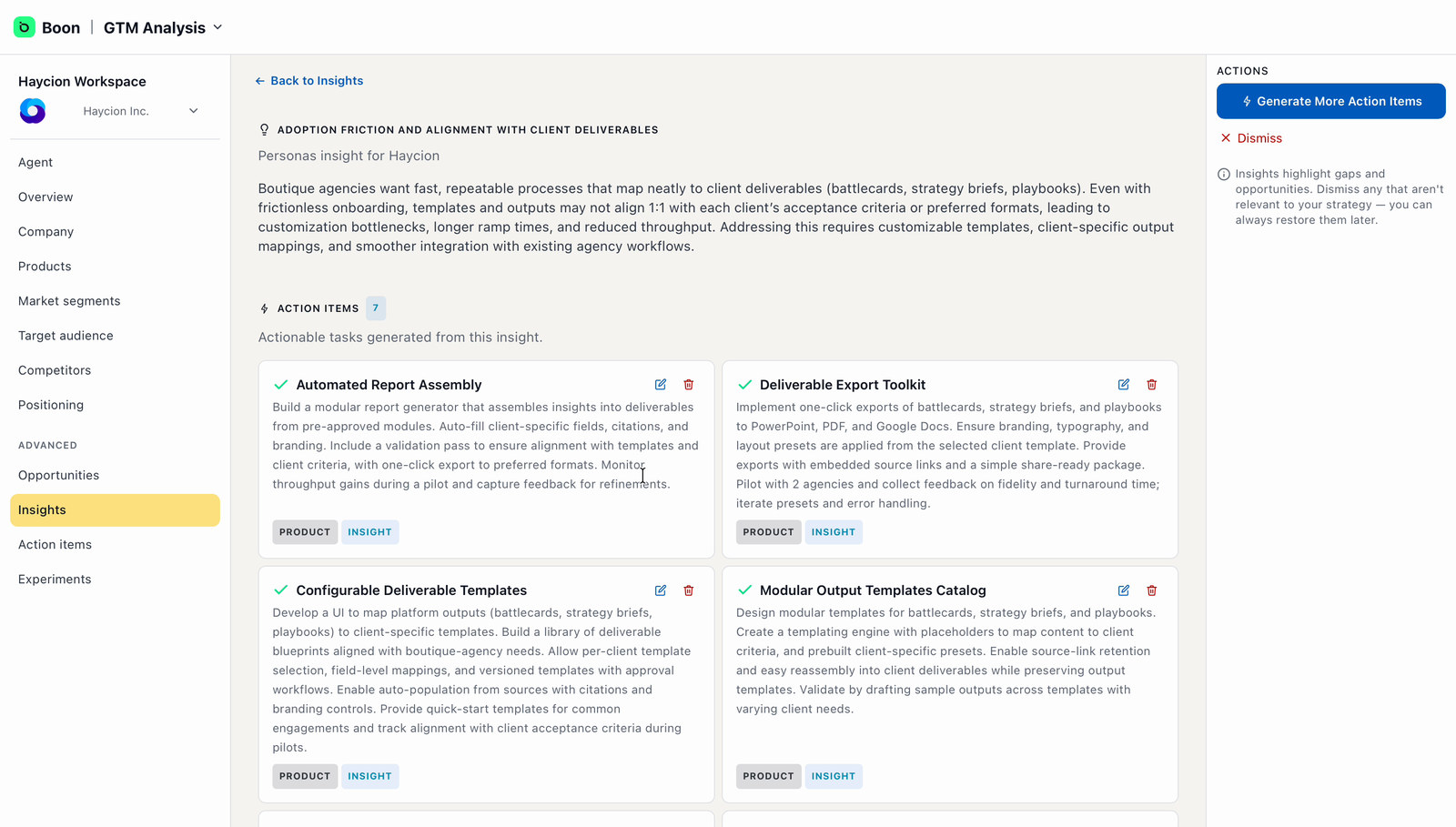
Inside an insight — the action items Boon generated from it.
Route your Action itemsThe Action items page collects everything you've saved — from Insights here in GTM Analysis and from Discoverability (your GEO Audit) — in one place, grouped by category: Strategy, Marketing, Sales, Product, Customer Success, Operations. Filter by source to see where each item came from.
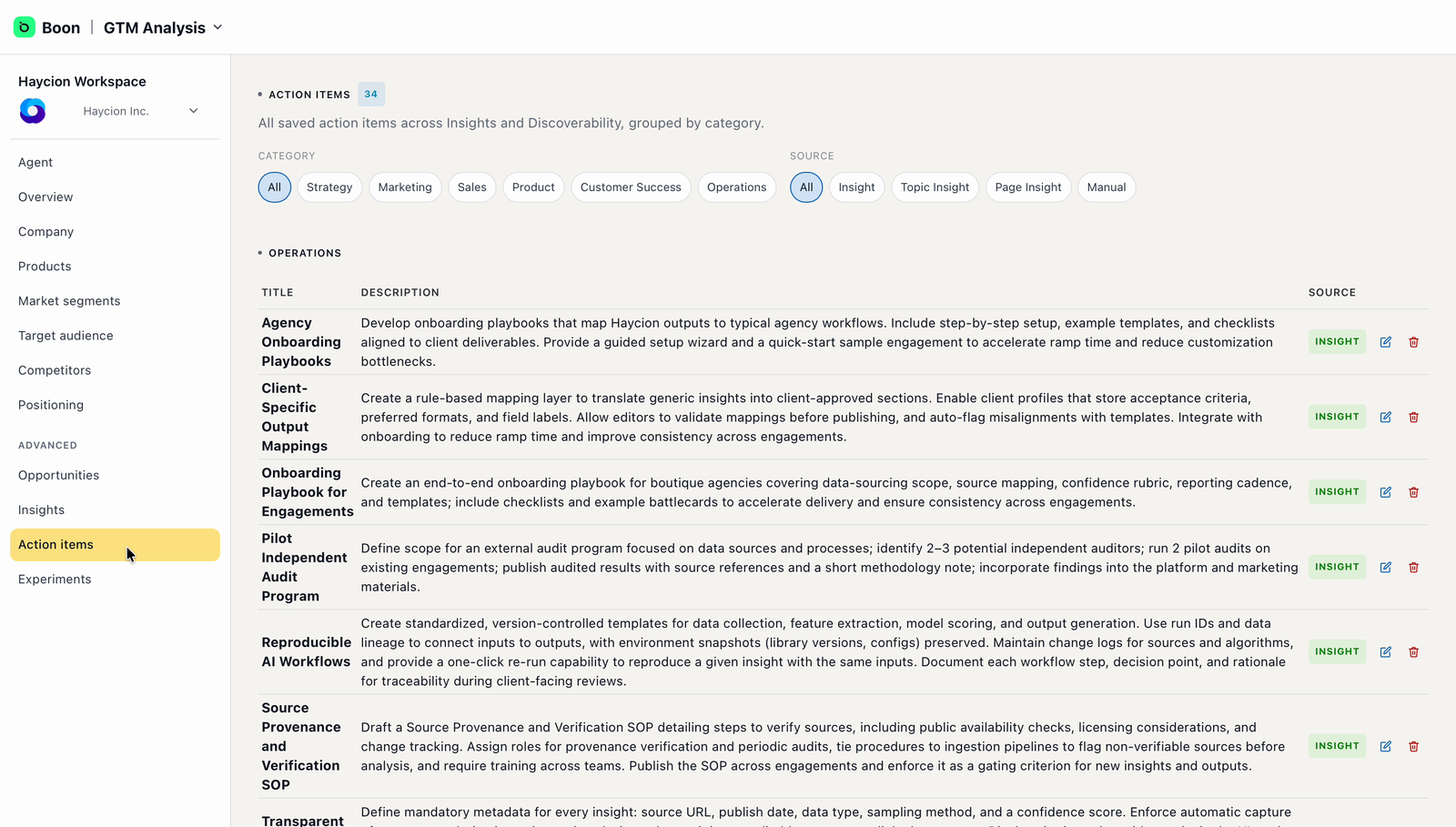
Action items — one list, grouped by category, with a source tag on each row.
This is the natural hand-off point: route each category to the right owner on your team, the same way you route GEO recommendations in the Get Started with GEO Audit guide.
Experiments, when you're readyExperiments (also under Advanced) creates sandbox copies of your workspace, so you can test changes to positioning or messaging without touching the live version. It starts empty — there's nothing to review at onboarding. When you want to trial a hypothesis, create one from this page.
Keep an eye on your Agent pageThe Agent page, at the top of the left menu, is your home base. It shows how ready your agent is to represent you, and — most usefully — a short Next Best Action list: Boon's suggestions for what's worth doing next, which update as you complete them.
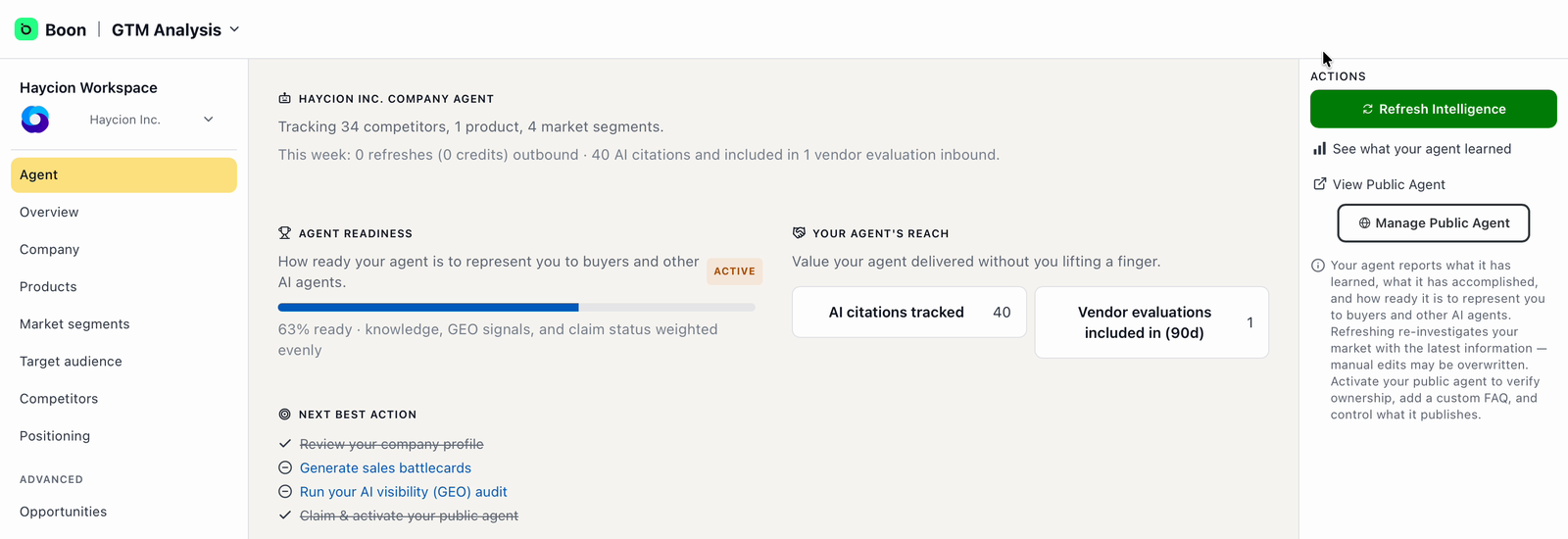
The Agent page — readiness, and Boon's suggested next actions.
If you're unsure, ask your agentYour company agent knows everything in this workspace. Open the chat in the top-right corner and ask it anything — "What should I do first?", "Why is this competitor classified as indirect?" — whenever you're not sure what something means or what to do next.
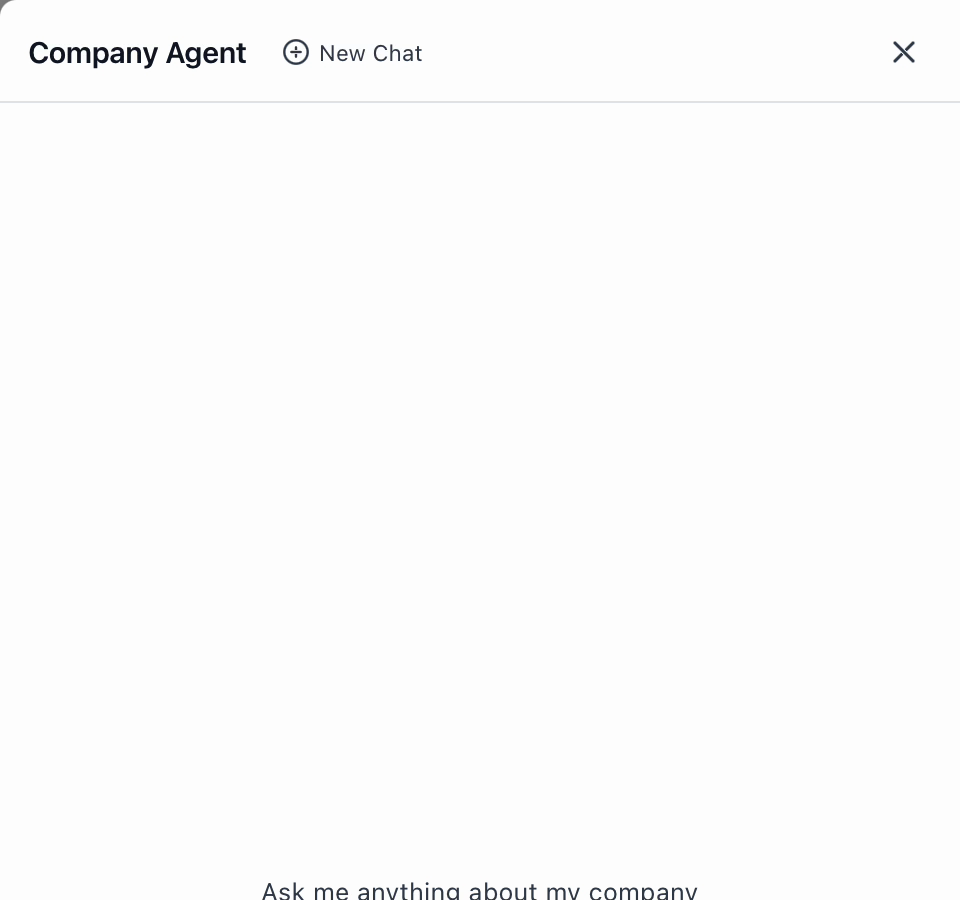
The company agent — a shortcut whenever you're unsure.
What happens next?Your review keeps paying off from here: work the action items with their owners, revisit Positioning and Insights as your inputs improve, and when you're ready to look at how AI assistants and search engines see you from the outside, run through the Get Started with GEO Audit guide next.
What if my company changes?
When your website, products, or positioning change, Boon can refresh the company intelligence so the workspace stays current. Reach out to the Boon team when you need one.
What are credits?
Deeper research, refreshes, experiments, generated action items, and GEO rebuilds may consume credits. The Capacity section of your Agent page shows what your agent's work bought in the current period.